Using Facets
Facets
Quicksearch provides facets as a way to get to specific material. Understanding facets and how they work will help you get the most functionality out of Quicksearch. Facets are categories of results and are listed under Refine on the left side of results. Individual facet values are the metadata in records.
Catalog Facet Categories
- Item Status: Item in place (on the shelf); Item not in place (unavailable, checked out); Holding has no items (mostly books in the Beinecke); Some available (multi-volume works)
- Format (books, journals, microforms, etc.)
- Publication Date
- Author/Creator
- Recently Added: dates of new records added between the past month and the past year
- Library: Physical location of the item within the Yale Library system, or Online for digital material.
- Language
- Subject: Subject headings for the topic covered by the material.
- Subject (Region): Subject headings for the area of the world covered in the material.
- Subject (Era): Subject headings for the time period covered in the material.
- Subject (Genre): category of artistic form or content. Examples are bibliography, handbooks, fiction, etc.
- Special Collections Subject: headings created by Yale catalogers for our collections
- LC Class: the code representing the physical location of the item. Only Library of Congress call numbers are included.
Hint: When you expand a facet (click on the >) only a subset of the most common results will display. To see all facet values select more at the bottom of the list.
Online Results: Applying and Excluding
The Show Online Results Only button may be toggled on and off.
To exclude online results, click Show Online Results Only, move your cursor up to the green circle above and click on the circle or the word Online. Online results will now be excluded from your results.
 Online results display
 Online results have been excluded
Combine Facets
You may choose one or multiple facets by clicking on a value. When you select multiple values within a category, the search is very restrictive (an AND). After selecting more than one facet value within format, for example, you will see that those values are listed at the top of the search with the term All Of displayed before them. The image below shows a search for Human Rights limited to both of the facet values Books and Online.

That search shows 48,982 results. You can make the set bigger with all the books plus all the online material by changing AND to OR, above the search results, which produces 103,039 results.

Facets – More>> List
Expanding Facets
To view all filters available from your search, select more >> at the bottom of the list.

There are two ways you can interact with this area.
-
Filtering by keyword
-
Sorting numerically or alphabetically
Filter by keyword
- Use the text box to search for a term

- Once you hit enter, the term will appear at the top of the list with a blue highlight.
- To return to the original list, select the X next to the term.

Sorting numerically or alphabetically
-
To sort numerically or alphabetically, use the "Sort by" drop-down menu.

Sorting numerically
-
By default, all facets will display the values organized numerically. This means that the value with the most results will appear first.
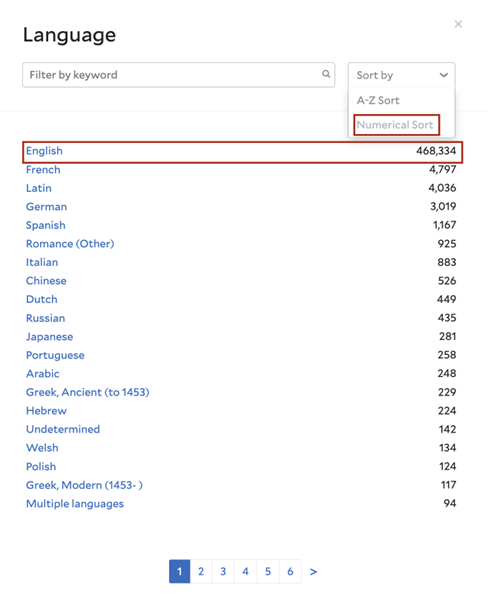
Sorting alphabetically
-
To sort alphabetically, select the box “Sort by,” and in the drop-down menu, select “A-Z Sort.”

Returning to the catalog
-
To return to the catalog with your new filter selections applied, select the x at the right corner of the box.
